
Using Cronometer- The Basics
One thing you can do to lose weight or change your body composition (AKA, decrease fat, gain muscle) is to track your macros intake to see how many carbs, protein and fat you are consuming. Once you determine this, you can adjust your macros intake in order to meet the health goals you have.
As a dietitian, I work with many of my clients to dial in on their macros intake by using an app. The app makes tracking food easy, because it has a huge database of foods uploaded to choose from, and it does the calculations for you, decreasing the work and providing a guide for what you are needing more or less of throughout the day. I like to use the analogy of using a map. Many times when people start tracking their food, they make the mistake of using it like an assignment that gets graded at the end of the day. You either do "good" and get an A or you do "bad" and get an F. I encourage the map analogy as we use a tracking app, because you should track your food intake and see where you are in accordance to your total macros target for carbs, protein and fat, as this will guide you to your next food choice for the day. As you align your macros with your goal targets, we see things like appetite regulation, blood sugar regulation, improved energy, fat loss and muscle building.
Using a food tracking app can feel overwhelming at first, but as you use it consistently throughout the day and over the course of several weeks, it gets easier and can provide valuable data as you work to meet your goals. There are other features to use as well, such as tracking exercise, weight, waist measurement and vitamin and mineral intake.
See the different tools below you can use on the Cronometer app:
Weight Logging
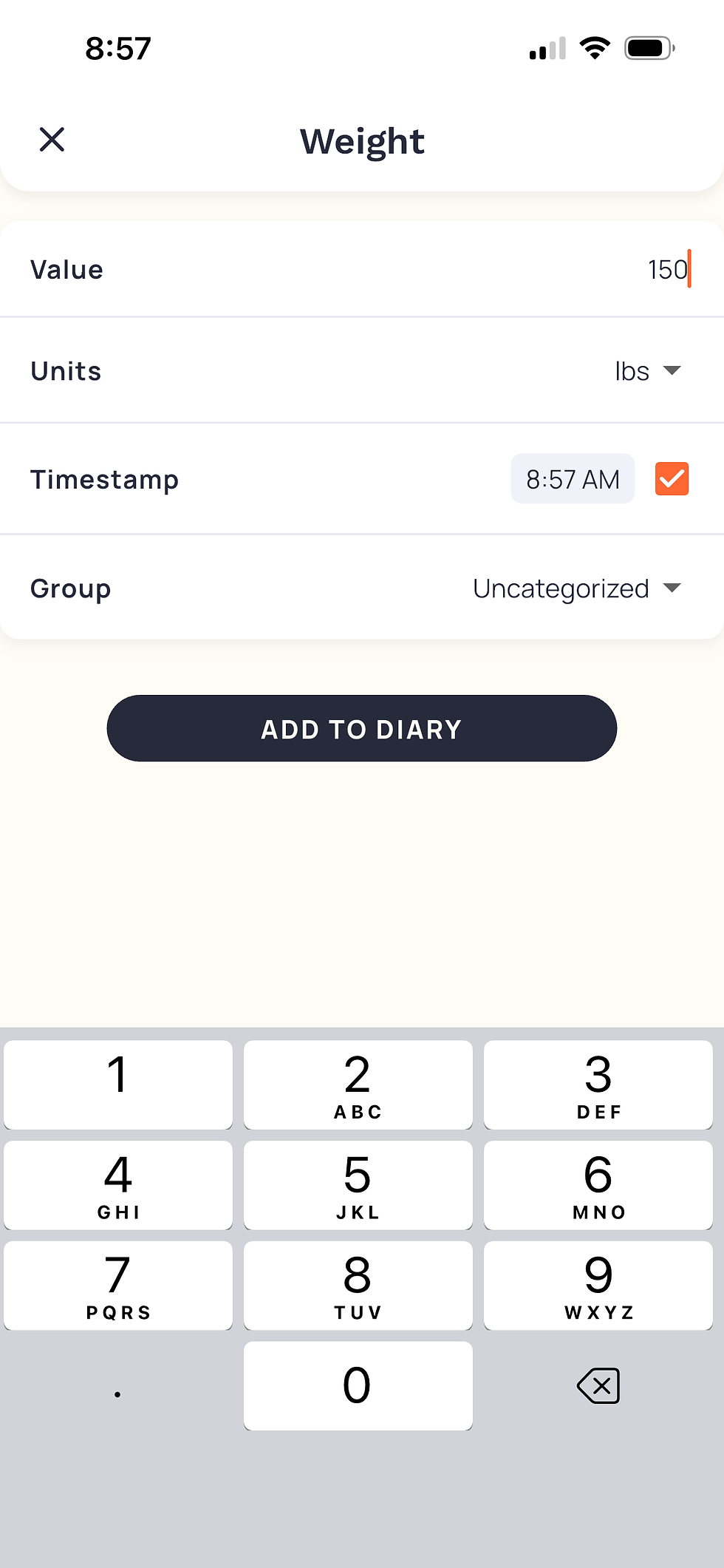
You can log your weight in the app daily by clicking the orange "plus sign" button and "add biometric." Choose weight and type in your weight for that day. It's always good to check your weight at the same time every day for accuracy.


Waist Circumference
Measuring your waist is an important step in any weight loss or body change journey. Don't skip this measurement if you want to see how your body really changes during a health and weight loss journey.

Exercise Tracking
You can log your exercise manually by clicking on the orange "plus" sign and clicking "add exercise." Search different exercise options by typing in things like "resistance training" or "walking" or "cycling." You can always adjust the intensity and time as well, in order to make it as accurate as you can.


If you want to sync with your exercise tracker on your phone or fitness watch, you may do this. However, we have found that over the past several challenges these can overestimate your calories burned and often double-track your activity. Be sure to work with your dietitian to be sure it is accurately tracking your exercise.
Adding Notes
The "add note" feature is something we use frequently in order to provide explanation for a choice that was made, clarify a situation when a meal is skipped, or provide daily or weekly goals. This is also used for uploading a picture of a scale for when you are tracking a weight for one of our challenges, or uploading a picture of a meal if your dietitian requests that. You can add anything you would like to a note, and it will show up on your diary for the day.


Adding a Recipe- Creating your own or importing from a webpage
This is an important feature for those of you who like to cook. If you make meals from your own family recipes or if you enjoy using recipes you find on blogs or Pinterest, this step is essential. It will allow you to add the specific food item from the recipe so that you can log accurately, rather then using a pre-imported recipe in the app.
If you participate in any of the KA Wellness and Nutrition Health and Weight Loss Challenges, you will see the recipes that are shared each week already pre-uploaded in the Cronometer app. However, if you decide to find recipes on your own or already have some favorite recipes, its worth taking the time to upload them in the app.
In order to do this, go to the "foods" tab at the bottom of the app, then click "create recipe" or "import recipe."
Create Recipe- This is for adding a recipe that is your own. You will add each ingredient according to the recipe you follow, then add in the servings you typically get from making the full recipe. You can also add directions to make the recipe, but this is optional. Be sure to name the recipe something distinguishable for you, as there are several recipes uploaded in the app. Ex. Sandy's Overnight Oats.
Import Recipe- This is for a recipe that you got from a webpage. You can simply copy and paste the link for the recipe (if you find it on Pinterest, be sure to go to the actual webpage, not your link for your Pinterest page). Then, be sure you review that everything pasted accurately and save the recipe. Now you can log the food each time you eat it. The best way to log it is by having one serving of that food item, or weighing the food and logging it according to its weight in grams.


These are some of the basic functions on the Cronometer app. You can refer to this page if you are participating in one of our health and wellness challenges!


Comments